
Visual regions
Draw areas on the selected display.
Visual work areas. A reusable workspace.
Organise Windows displays with visual work areas, protected toolbars and reusable layouts.

Your display, arranged around your work
Turn a large screen into the regions your work actually needs.
Draw areas on the selected display.
Keep windows within their assigned region.
Reserve deliberate space for toolbars.
Return to a layout you have already set up.
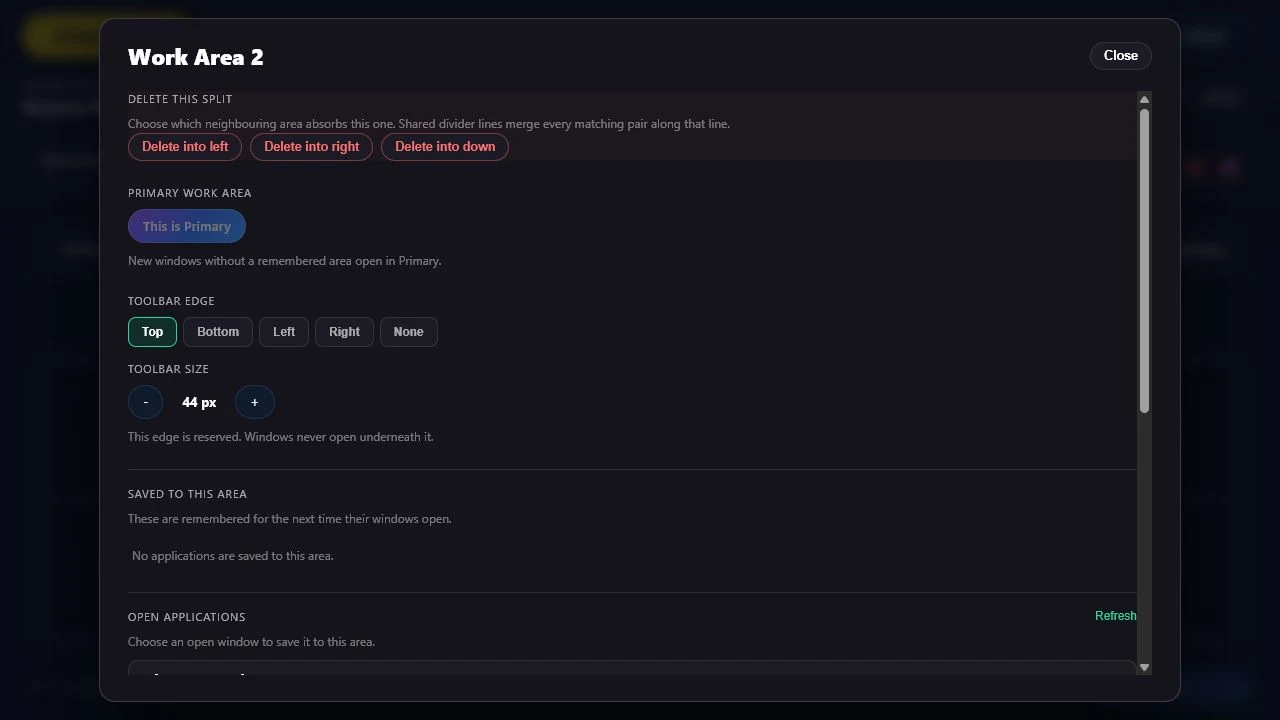
Shape the working regions you need
The prepared product view shows work-area controls for Primary, toolbar edges and application assignments.
Choose the display and draw the work areas your layout needs.
Reserve toolbar space, set the Primary Work Area and optionally remember application assignments.
Four steps to a saved layout
Set up your display through a simple visual workflow.
Select the screen you want to organise.
Use the widths and arrangement your work needs.
Reserve toolbar edges and choose where new windows open.
Keep the arrangement for Windows startup.
Your organised display workspace
Keep your windows and reserved toolbar space arranged around your work.
Draw the working regions your display needs.
Keep maximised and restored windows in their area.
Reserve deliberate display space for toolbars.
Choose where new unassigned windows open.
Optionally assign applications to their areas.
Bring your saved layout back when Windows starts.
Restore a saved layout when a display reconnects.
Keep named layouts for different kinds of work.
Set the working regions your display needs
Organise large displays, ultrawides and multi-monitor workstations.
Choose work areas without entering coordinates.
Set the starting place for unassigned windows.
Reserve the display space your toolbars need.
Optionally remember where particular applications belong.
Return to the workspace you arranged
Keep useful layouts ready for the next working session.
Retain the arrangement you have chosen.
Restore your saved layout when Windows starts.
Recover the saved arrangement for a returning display.
Reuse layouts for different work.
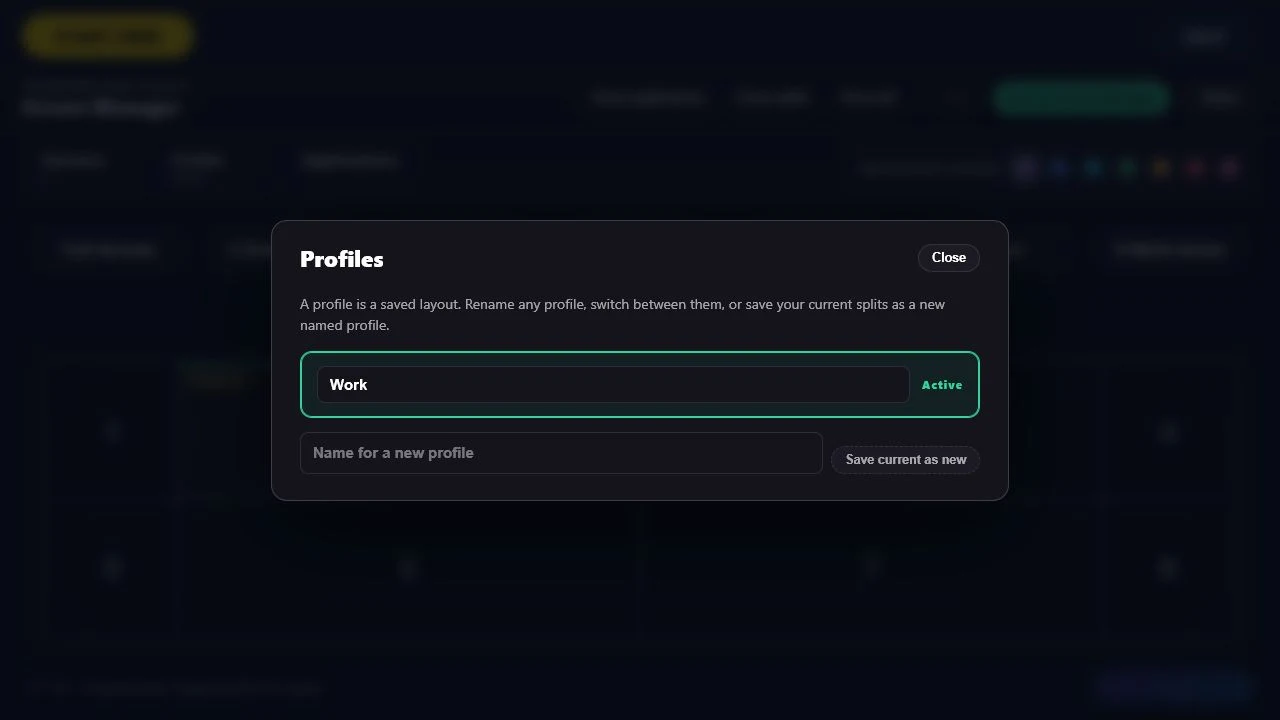
A saved layout ready to reuse
The prepared profiles view shows an active Work profile and a new-profile action.
Save named profiles and reuse different layouts without rebuilding your display arrangement.
Restore the saved layout at Windows startup and recover it when a display reconnects.
A desktop utility for your Windows workspace
Use Screen Manager through Desktop Command Centre.
Organise your desktop displays in the DCC.
Keep maximised and restored windows in place.
Give toolbars deliberate room on the display.
Use this utility with your VISINVOKE account.
Free utility access
Use Screen Manager on Windows through Desktop Command Centre.
Screen Manager is free with your account.
Use the utility through Desktop Command Centre on Windows.
Use your account installer page to install the DCC.
Create a free VISINVOKE account to begin.
VISINVOKE means value
Bring visual areas, reserved toolbar space and reusable layouts together.

Draw the working regions your display needs.
Keep windows in their assigned areas.
Reuse layouts for different working sessions.
Restore the saved arrangement after startup or display reconnect.
Explore your VISINVOKE workspace
Each card opens its own product website. Review purpose and access separately; related products do not promise included access or automatic synchronisation.
Open your VISINVOKE desktop products.

Prepare a live exchange after an established social mistake.

Build the wider setting around your campaign.

Develop the places your party travels through.

Explore separate adventure environments.

Explore separate fantasy image creation.
Hero and related artwork is illustrative, not application screens or actual generated image output. Work-area and profile images show prepared product interface views.
Quick answers
Understand areas, toolbars, application assignments and reusable layouts.
Screen Manager organises Windows displays into visual work areas, keeps windows inside their assigned areas and reserves space for protected toolbars. Your saved layout returns when Windows starts, with recovery for reconnected displays and reusable profiles.
Choose the display, draw or select its work areas, add toolbars where needed and choose the Primary Work Area for new windows. Save the layout so it can return at the next Windows startup. Normal setup is visual, with no coordinates or monitor IDs to enter.
Maximised and restored windows stay within their assigned work area rather than covering the whole physical display. Protected toolbars occupy reserved space so applications do not open underneath them.
Optionally assign specific applications to work areas. Choose a Primary Work Area for new unassigned windows so your layout has a clear starting place for windows without a remembered assignment.
Save reusable named profiles for different work. Your saved layout returns at Windows startup, and reconnecting a display restores its saved layout so you can return to the intended arrangement.
Screen Manager is free with your VISINVOKE account. Use it on Windows through Desktop Command Centre, especially for large displays, ultrawides and multi-monitor workstations. Create your account, use its installer page and open the utility in the desktop workspace.
Continue in VISINVOKE
Create your free VISINVOKE account to access Screen Manager.
Use your account installer page for Desktop Command Centre.
Open Screen Manager in your Desktop Command Centre workspace.